
Your Notification Rules are preconfigured settings designed to send you various types of email alerts, including instant email alerts, daily reports, weekly reports, and URL-specific alerts. Below is a full breakdown of each report type.
Send Instant Email Alerts
The Send Instant Email Alerts feature notifies you via email whenever a visitor views a specified number of pages on your website. You can set the trigger for anywhere between 1 to 50 page views. Additionally, you have the flexibility to control alerts for returning visitors over a selected timeframe, from 1 day up to 30 days.
Send Instant Email Reports
The Send Instant Email Reports feature will send a daily report showing the most active visitors each day. You can set the trigger for anywhere between 10 most active visitors to 200.
Daily reports are sent at approximately 3:00 AM Eastern Time and describe the previous day’s activity.
Send Weekly Reports
The Send Weekly Reports feature will send a report showing the most active visitors each week. You can set the trigger for anywhere between the 10 most active visitors to 200.
Weekly reports are sent at approximately 3:00 AM Eastern Time every Monday and describe the previous week’s activity.
Send URL Email Alerts
This rule allows you to monitor specific URLs on your website. When a visitor lands on any of the designated URLs, you’ll receive an instant email notification. This ensures you’re alerted for visits to particular pages of high importance.
If your Instant Email Alerts are set to “3 pages” but a company visits a designated URL, you will receive a notification regardless of pages met.
Your Instant Email Alerts Notifications must be turned on to receive URL & watch alerts.
How do I change my notification rules?
Depending on your settings, when you get a new lead, it notifies your email inbox. IDEX Pro has pre-set notification rules, but you might want to play with the numbers to see which one fits your needs best.
There are four notification rules you can adjust, which were each outlined above.
Step 1:
Log in to your IDEX Pro.
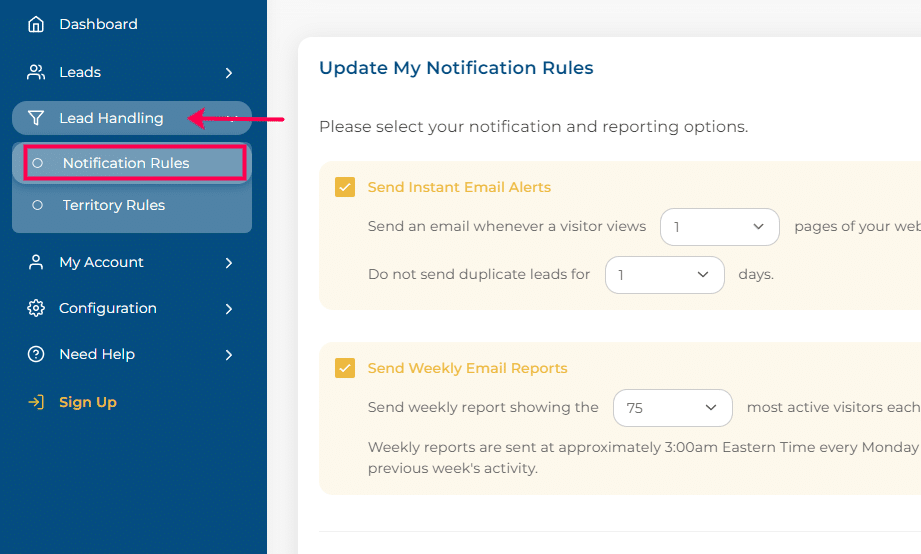
From your menu, select ‘Lead Handling -> Notification Rules’.
Step 2:
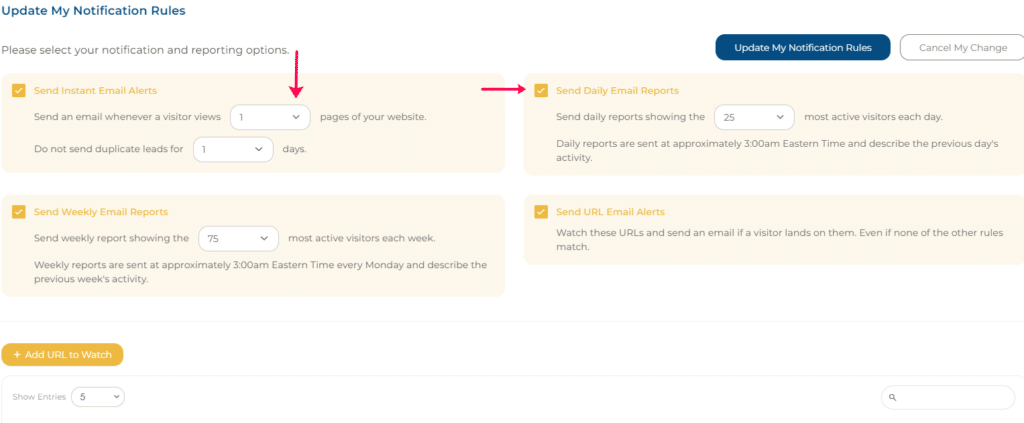
You will see all four of the notification rules that can be adjusted. You can also uncheck any of the boxes to remove those notification alerts altogether.
Step 3:
Another option for your notifications is to ‘Add URL to Watch.’ This is the yellow button at the bottom of your Notification Rules page.
Adding a URL to your watch list allows you to be alerted when someone views a specific page on your website. For example, if someone visits your pricing page, you will be notified. This way, you don’t have to funnel through to see which leads did what.
Insert your website page into the pop-up window and select ‘Create Notification URL.’
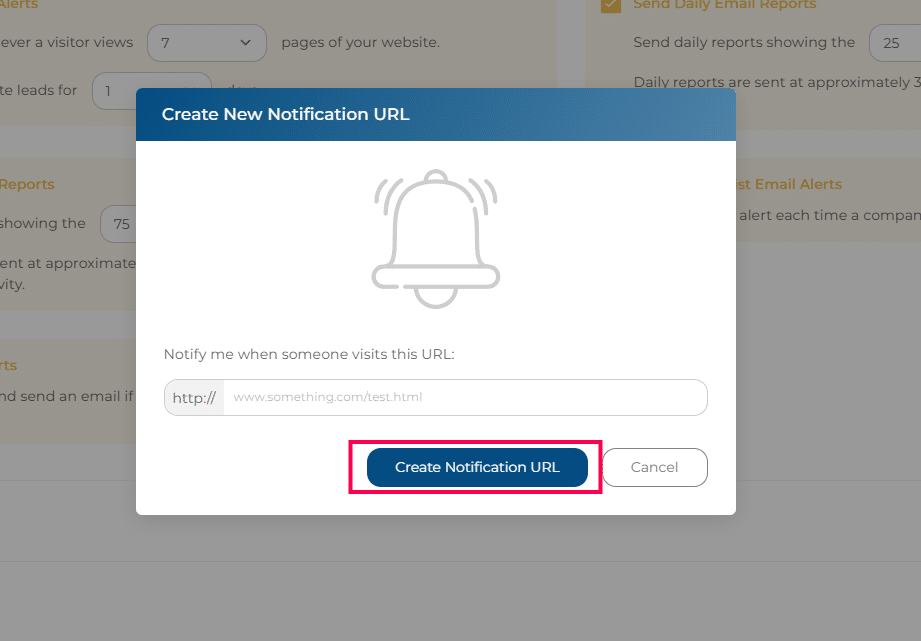
If you are happy with your changes, select ‘Update My Notification Rules’ to save your changes.
Step 4:
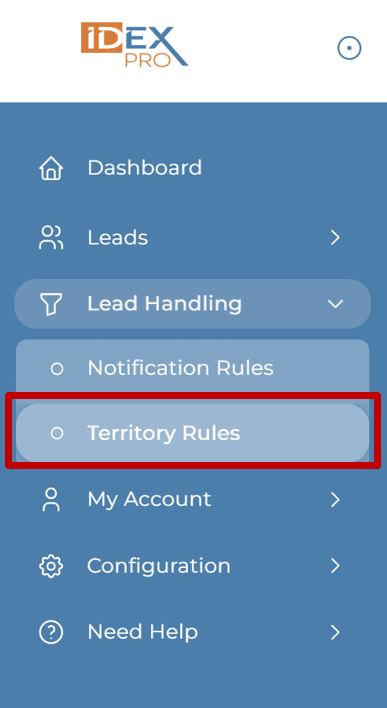
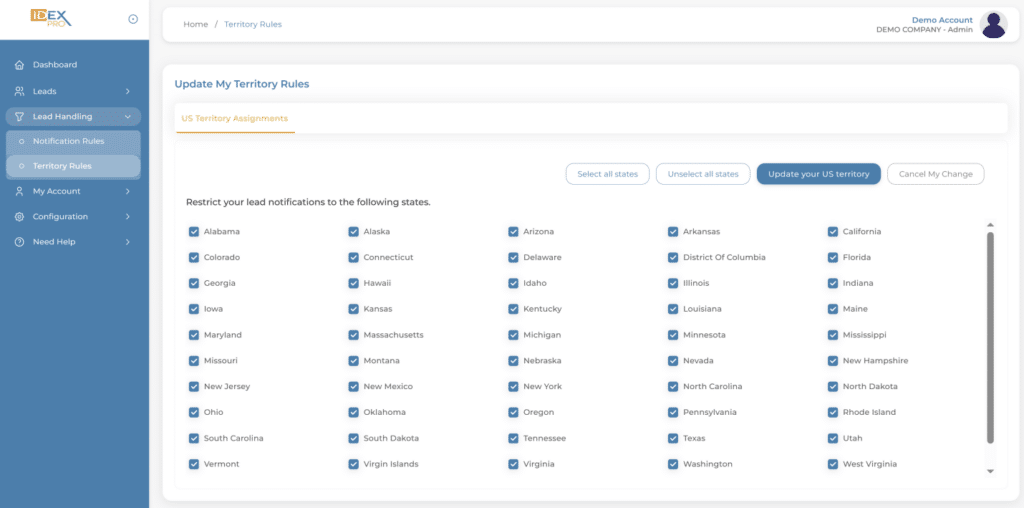
If you wish to restrict your lead notifications to specific states, navigate to Territory Rules.
Step 5:
All states will be selected as the default. Use the Select all states and Unselect all states options, or alter your settings state by state. Select to update your US territory when finished with edits.
All steps will only change the alerts for the profile of the user who made the changes.